
PICK YOUR AI THEME TO GET STARTED

ADD KNOWLEDGE
FILES → MOBLE
Upload and sync files from Google Drive, Airtable, or CSV directly into MOBLE — automatically or in bulk.
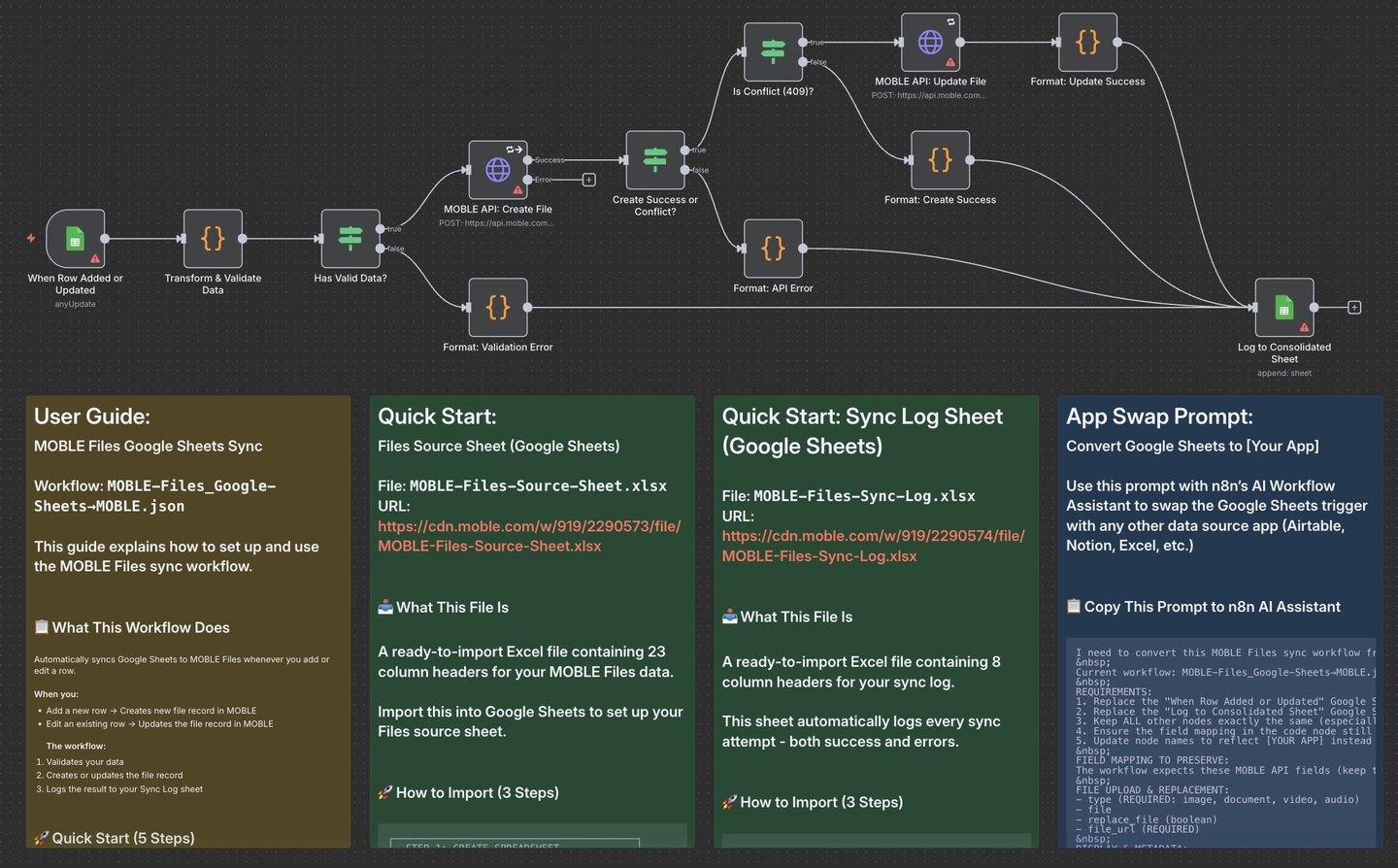
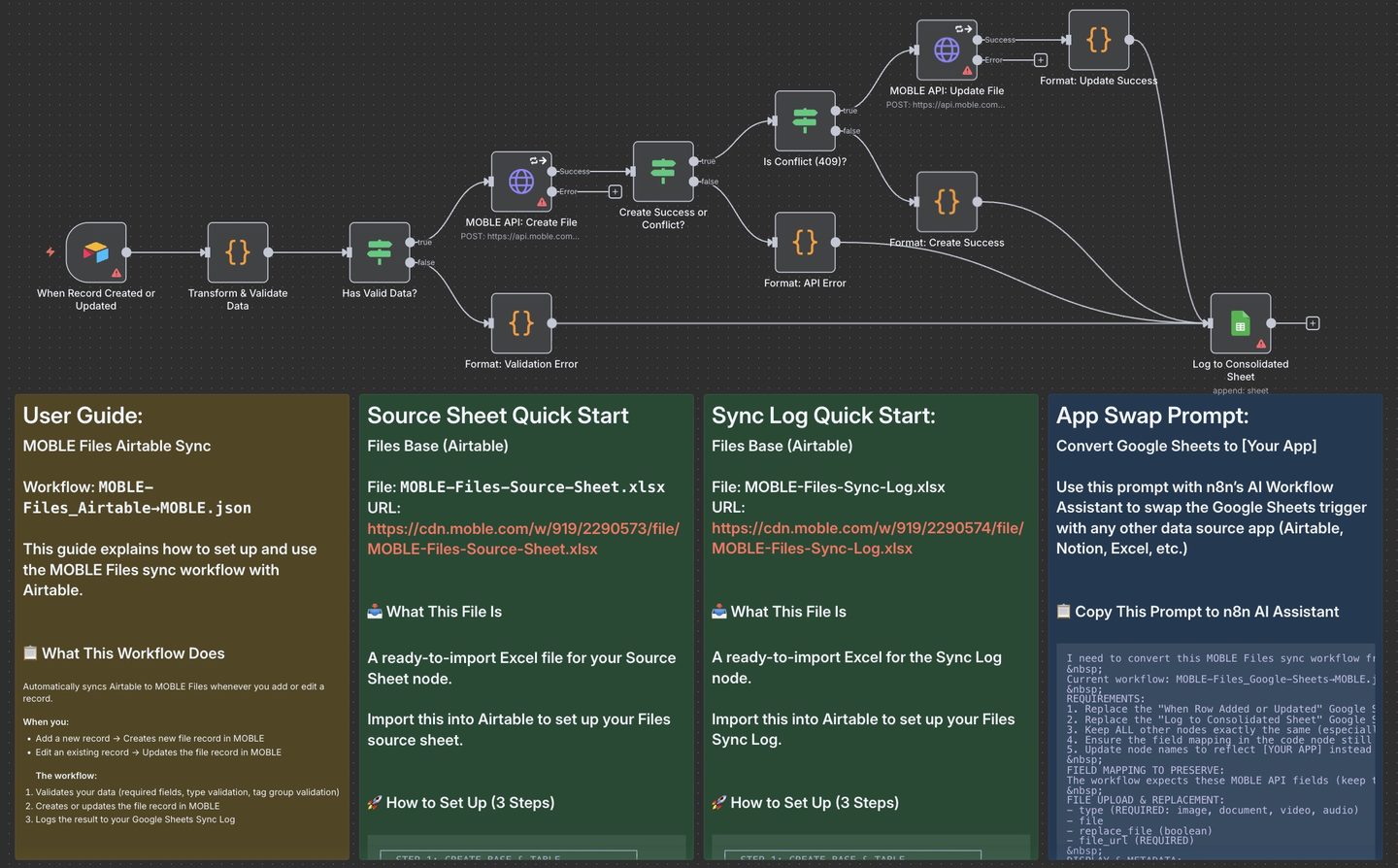
Source Sheet (Google Sheets or Airtable) → n8n Workflow → MOBLE Files API → MOBLE Files → MOBLE Knowledge Base → Google Sheets (Sync Log)
DOWNLOADS
Use a Google Sheet or Airtable Base as a live content editor to upload and update Files in MOBLE. When rows/records are added or updated, n8n automatically syncs them to MOBLE Knowledge → Files, updating your site and AI Knowledge Base.
You can add URLs of images, PDFs, documents, videos, or audio files. MOBLE then processes those Files, attaches metadata, AI tags and tag groups, and logs every sync event to a Google Sheets Sync Log for auditing and troubleshooting.
Typical use cases include:
- Bulk-importing brand assets (logos, product photos, hero images)
- Uploading documents such as menus, brochures, FAQs, or spec sheets
- Syncing video and audio URLs into your Knowledge Base for chatbots
- Centralising Files from Google Drive, Airtable, or imported CSVs
1. Create Your Source Sheet (Google Sheets or Airtable)
- Create two spreadsheets/bases using these files:
- MOBLE-Files-Source-Sheet — your main content sheet (tab/table: Files)
- MOBLE-Files-Sync-Log — your automatic results log (tab: Sync Log)
- For Google Sheets:
- Create a Google Sheet named MOBLE-Files-Source-Sheet and import the Files tab from the template.
- Create a second Google Sheet named MOBLE-Files-Sync-Log and import the Sync Log tab from the template.
- For Airtable:
- Create a Base named MOBLE Files and a table named Files (exact spelling and case).
- Import the MOBLE-Files-Source-Sheet.xlsx into the Files table so your column headers match.
- Add a Last Modified field using the Airtable Last modified time type for the trigger.
- Create another table or separate Base for your Sync Log if you also want to log to Airtable, or just use the Google Sheets Sync Log.
- You can populate the Source Sheet manually, or import from CSV/Excel or another app, as long as the column names match the template.
2. Import the n8n Workflows
- Open n8n and go to Create Workflow → Import from File.
- Import the workflow template that matches your setup:
- MOBLE-Files_Google-Sheets→MOBLE.json (Google Sheets as the Source)
- MOBLE-Files_Airtable→MOBLE.json (Airtable as the Source)
- The workflow will open in the n8n editor; leave it Inactive until you finish setup.
- Each workflow includes:
- A Trigger node (Google Sheets or Airtable) that fires when a row/record is added or updated
- A Transform & Validate Data code node that maps fields and validates them
- MOBLE API nodes to create or update Files
- A Google Sheets node to log all sync results to the Sync Log sheet
3. Add Trigger Node Credentials (in n8n)
Google Sheets Trigger Node (Source)
- Click the Trigger node titled When Row Added or Updated.
- Under Credential to connect with, click + Create New Credential, choose Google Sheets OAuth2, complete sign-in, then Save.
- Configure:
- Document: MOBLE-Files-Source-Sheet
- Sheet: Files
Airtable Trigger Node (Source)
- Click the node titled When Record Created or Updated.
- Under Credential to connect with, click + Create New Credential, choose Airtable OAuth2 (or Personal Access Token), authorize, then Save.
- Configure:
- Base: MOBLE Files
- Table: Files
- Trigger Field: Last Modified
- The trigger will poll for new or updated records and process one record per event.
4. Add MOBLE API Credentials (in n8n)
- In your MOBLE dashboard, go to Settings → Integrations → MOBLE API Key and copy your API key (starts with
ak_). - In n8n, open each of the following nodes:
- MOBLE API: Create File
- MOBLE API: Update File
- For each node:
- Under Credential to connect with, click + Create New Credential and select Header Auth.
- Set:
- Name: Authorization
- Value: Bearer ak_XXXXXXXXXXXXXXXX
- Save the credential and re-select it in both API nodes.
5. Add Sync Log Credentials (in n8n)
- Click the node titled Log to Consolidated Sheet.
- Attach your Google Sheets OAuth2 credential.
- Configure:
- Document: MOBLE-Files-Sync-Log
- Sheet: Sync Log
- This node logs every sync event:
- Successful creates
- Successful updates
- Validation errors
- API errors (including status code)
6. Test, Then Activate
- In n8n, click Execute Workflow for a manual test run.
- Add a simple row/record in your chosen Source (Google Sheets or Airtable), for example:
Type: document
File URL: https://example.com/files/menu.pdf
Title: Test File
Tag Group: Brand
- Check MOBLE → Knowledge → Files for “Test File”.
- Check the MOBLE-Files-Sync-Log sheet for a new row with Status: success.
- Once verified, toggle the workflow to Active for continuous syncing.
- Type — File type (image, document, video, audio). (Validated)
- File — Direct file reference (optional, where supported by your source app).
- File URL — Public URL to the file (file_url). (Required)
- Title — Display title for the file (title). (Required if File not provided)
- Alternative Text — Alt text for images and accessibility (file_alt_text).
- Tags — Comma-separated tags (tags array).
- Display Date — Optional display date (any format, normalised to YYYY-MM-DD) (file_display_date).
- Sort Order — Integer used to order files (file_sort_order).
- Destination URL — Link to open when the file card is clicked (file_destination_url).
- Author — Author credit (file_author).
- Category — Category for grouping files (category).
- Content — Longer description or HTML content (file_content).
- Embed Code — Optional embed HTML or script (embed_code).
- Summary — Short summary or teaser (file_summary).
- File Icon — Icon name or URL (file_icon).
- Replace File — TRUE/FALSE to indicate if an existing file should be replaced (replace_file).
- Add to Tag Group — TRUE/FALSE to attach the file to a Tag Group (add_to_tag_group).
- Tag Group — Single selection tag group (tag_group) from:
- Brand, Colour, Depth, Diameter, Finish, Grams, Height, Length, Material, Size, Style, Volume, Width
- AI Tags — Comma-separated AI tags for search/segmentation (file_ai_tags array).
- AI Priority — Integer (e.g. 1–10) to influence chatbot ranking (file_ai_priority).
- AI Importance — Integer (e.g. 1–10) for business importance (file_ai_importance).
- AI Summary — Short text summary used by chatbots (file_ai_summary).
- Last Modified — (Airtable only) Last modified time field used by the Trigger.
- Timestamp — When the sync ran.
- Status — success or error.
- Action — created, updated, validation_failed, or api_error.
- File URL — The file_url that was processed.
- Title — The title processed for this run.
- Type — The file type (image/document/video/audio).
- Error — Error message (if any).
- Required fields:
- File URL is required.
- At least one of Title or File must be provided.
- Type validation:
- Valid values: image, document, video, audio (case-insensitive).
- Invalid types cause a validation error and the file is not sent to MOBLE.
- Tag Group validation:
- Must be a single value from the 13 allowed options (Brand, Colour, Depth, etc.).
- Multiple values or mis-spellings will generate a validation error.
- Create vs Update:
- The workflow always tries Create first.
- If MOBLE returns 409 Conflict, the workflow automatically calls Update File instead.
- All results are logged, including API status codes.
- Nothing syncing:
- Ensure the workflow is Active in n8n.
- Check that the Trigger node is configured with the correct Document/Base and Sheet/Table name (Files).
- For Airtable, confirm the Last Modified field exists and is set to Last modified time.
- Validation errors:
- Check that File URL is populated and valid.
- Ensure Type is one of image, document, video, audio.
- Ensure Tag Group is a single value from the allowed list.
- API 401/403 (Forbidden):
- Confirm your MOBLE API key is correct and has not expired.
- Header must be: Authorization: Bearer ak_XXXXXXXX on both API nodes.
- Files not appearing in Knowledge → Files:
- Check the Sync Log for errors.
- Confirm that your filter/views in MOBLE are not hiding the new files.
SECURITY: Restrict n8n and Source Sheet access to trusted staff only. Rotate your MOBLE API keys regularly and remove credentials when staff leave your organisation.
RELATED HELP



Play before you Pay?
GETTING AROUND
SUPPORT
AI SALES LINE
AI SUPPORT LINE
ENQUIRIES
team@moble.com.au
GET A QUOTE
A Web Builder for Design. A CMS for Business. We serve all businesses from SME's to Enterprise. Talk with us for AI development, custom website design, website development, ecommerce websites, directories, intranets and social networks.
PRIVACY | WEBSITE TERMS | PLATFORM TERMS | © 2026 MOBLE PTY LTD