
PICK YOUR AI THEME TO GET STARTED

ADD KNOWLEDGE
CONTACTS → MOBLE
Import new or updated Contacts from Google Sheets or Airtable directly into Moble — automatically or in bulk.
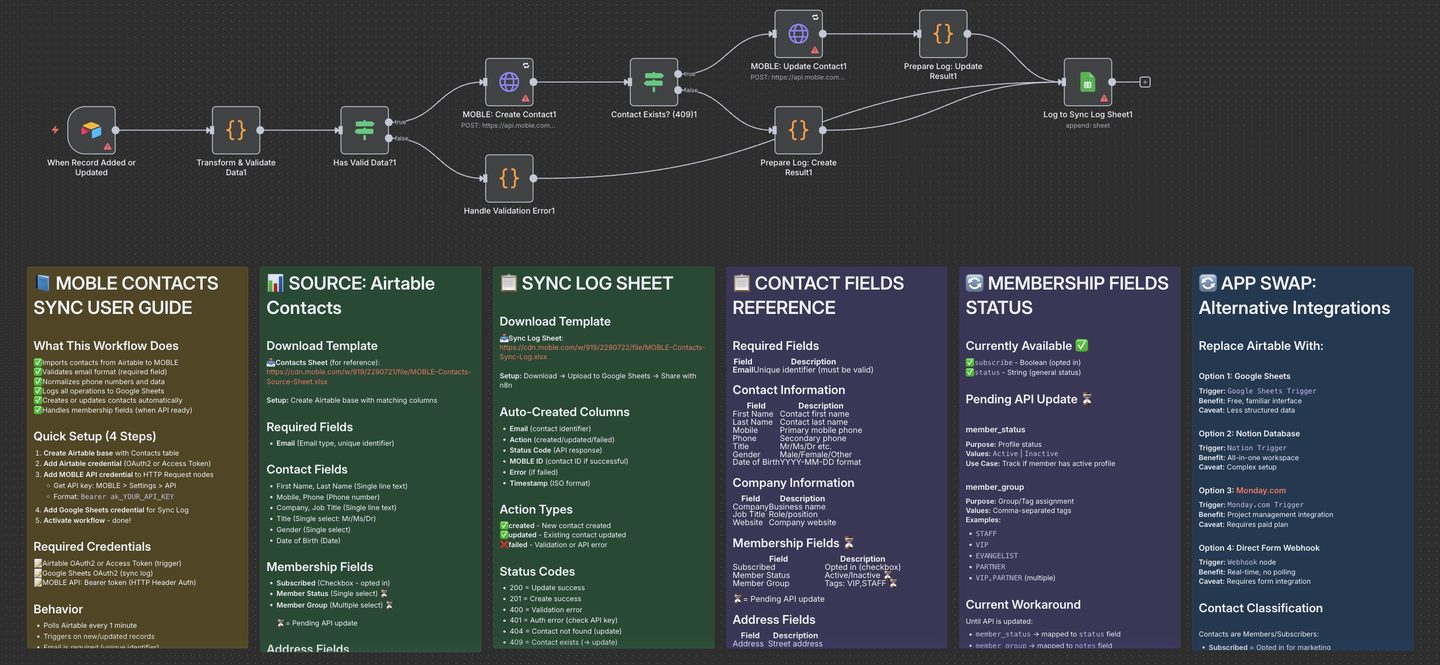
Source Sheet (Google Sheets or Airtable) → n8n Workflow → Moble Contacts API → Moble CRM — Contacts → Google Sheets (Sync Log)

DOWNLOADS
Use a Google Sheet or Airtable Base as a live list to add/update Contacts in Moble CRM. When rows/records are added or edited, n8n syncs them to CRM → Contacts, and writes a full audit trail to a Google Sheets Sync Log.
Typical use cases:
- Bulk-importing subscriber/member lists (from events, partners, purchases)
- Regular list hygiene — update names, phones, company details
- Segmenting groups for newsletters, chatbots, and outreach flows
1. Create Your Source Sheets
- Create two separate Google Sheets using these templates:
- MOBLE-Contacts-Source-Sheet (tab: Contacts) — each row is one contact
- MOBLE-Contacts-Sync-Log (tab: Sync Log) — auto-written results log
- If you use Airtable, create a base and a table named Contacts with matching column headers; add a Last Modified field (Last modified time) for the trigger. Sync Log still uses the Google Sheet.
2. Import the n8n Workflow
- In n8n: Create Workflow → Import from File → choose the template that matches your source:
- Google Sheets → Moble Contacts (.json)
- Airtable → Moble Contacts (.json)
- Leave the workflow Inactive until credentials and sheet/base names are set.
3. Add Trigger Node Credentials (in n8n)
Google Sheets Trigger (Contacts)
- Open When Row Added or Updated → attach Google Sheets OAuth2.
- Configure:
- Document: your Contacts source sheet
- Sheet: Contacts
Airtable Trigger (Contacts)
- Open When Record Added or Updated → attach Airtable OAuth2 or Personal Access Token.
- Configure:
- Base: your Contacts base
- Table: Contacts
- Trigger Field: Last Modified
4. Add Moble API Credentials (in n8n)
- Open both HTTP Request nodes:
- Moble API: Create Contact
- Moble API: Update Contact
- Add a Header Auth credential on each:
- Name: Authorization
- Value: Bearer YOUR_API_KEY
- Get your key from Moble → Settings → API.
5. Add Sync Log Credentials (in n8n)
- Open the Google Sheets node that writes the log (e.g., Log to Sync Log Sheet).
- Attach your Google Sheets OAuth2 credential.
- Configure:
- Document: your MOBLE-Contacts-Sync-Log sheet
- Sheet: Sync Log
6. Test, Then Activate
- In n8n click Execute Workflow for a manual test.
- In your Contacts source sheet add a simple row:Email: contact@example.com
First Name: Test
Last Name: User
Subscribed: TRUE - Check CRM → Contacts for your new contact.
- Check the Sync Log for action (
created/updated) and status code (201/200). - Toggle the workflow to Active for live syncing.
- Email — Required; unique identifier
- First Name, Last Name
- Mobile, Phone (normalised)
- Company, Job Title, Website
- Subscribed (TRUE/FALSE)
- Member Status (e.g., Active/Inactive) — pending API
- Member Group (e.g., VIP,PARTNER) — pending API
- Address, City, State, Country, Postcode
- Instagram, LinkedIn, Facebook, Twitter
- Date of Birth (YYYY-MM-DD)
- Notes
Notes: Until member_status and member_group are added to the API, the workflow maps Member Status to status and flattens groups into notes (e.g., [GROUPS: VIP,PARTNER]).
- Email — Contact identifier
- Action —
created,updated, orfailed - Status Code — 201 (created), 200 (updated), 0 (validation error), etc.
- MOBLE ID — Contact ID if successful
- Error — Message for failures
- Timestamp — ISO date/time
Tip: Filter by action = failed to quickly find and fix issues.
- Required: Email must be present and valid.
- Create vs Update: Workflow tries Create first; if API returns
409, it calls Update. - Retries: API calls retry up to 3x with backoff; all outcomes are logged.
Endpoints used: POST /api/site/contacts/create and POST /api/site/contacts/update.
Prefer another source? Use the same workflow pattern and swap the trigger (e.g., Notion, Monday.com, Webhook). Keep the Moble API nodes and Google Sheets Sync Log as-is.
- Nothing syncing: Ensure the workflow is Active and only one source trigger is enabled.
- 401/403: API key missing/invalid. Header must be Authorization: Bearer <key> on both API nodes.
- 409: Contact already exists; workflow auto-switches to Update.
- No Sync Log: Confirm Google credential and the sheet name Sync Log.
- Validation errors: Check email format; empty or invalid emails are logged and skipped.
SECURITY: Limit n8n and sheet access to trusted staff. Rotate API keys regularly and remove credentials when people leave.
RELATED HELP



Play before you Pay?
GETTING AROUND
SUPPORT
AI SALES LINE
AI SUPPORT LINE
ENQUIRIES
team@moble.com.au
GET A QUOTE
A Web Builder for Design. A CMS for Business. We serve all businesses from SME's to Enterprise. Talk with us for AI development, custom website design, website development, ecommerce websites, directories, intranets and social networks.
PRIVACY | WEBSITE TERMS | PLATFORM TERMS | © 2026 MOBLE PTY LTD