
PICK YOUR AI THEME TO GET STARTED

ADD KNOWLEDGE:
BLOGS → MOBLE
Sync your Blog posts from Google Sheets, Airtable, or another platform directly into MOBLE — automatically or in bulk.
Source Sheet (Google Sheets or Airtable) → n8n Workflow → MOBLE Blogs API → MOBLE Blogs → MOBLE Knowledge Base → Google Sheets (Sync Log)
Let non-technical teams write blog content in a shared sheet. n8n keeps MOBLE updated and writes a clear Sync Log for review.
DOWNLOADS
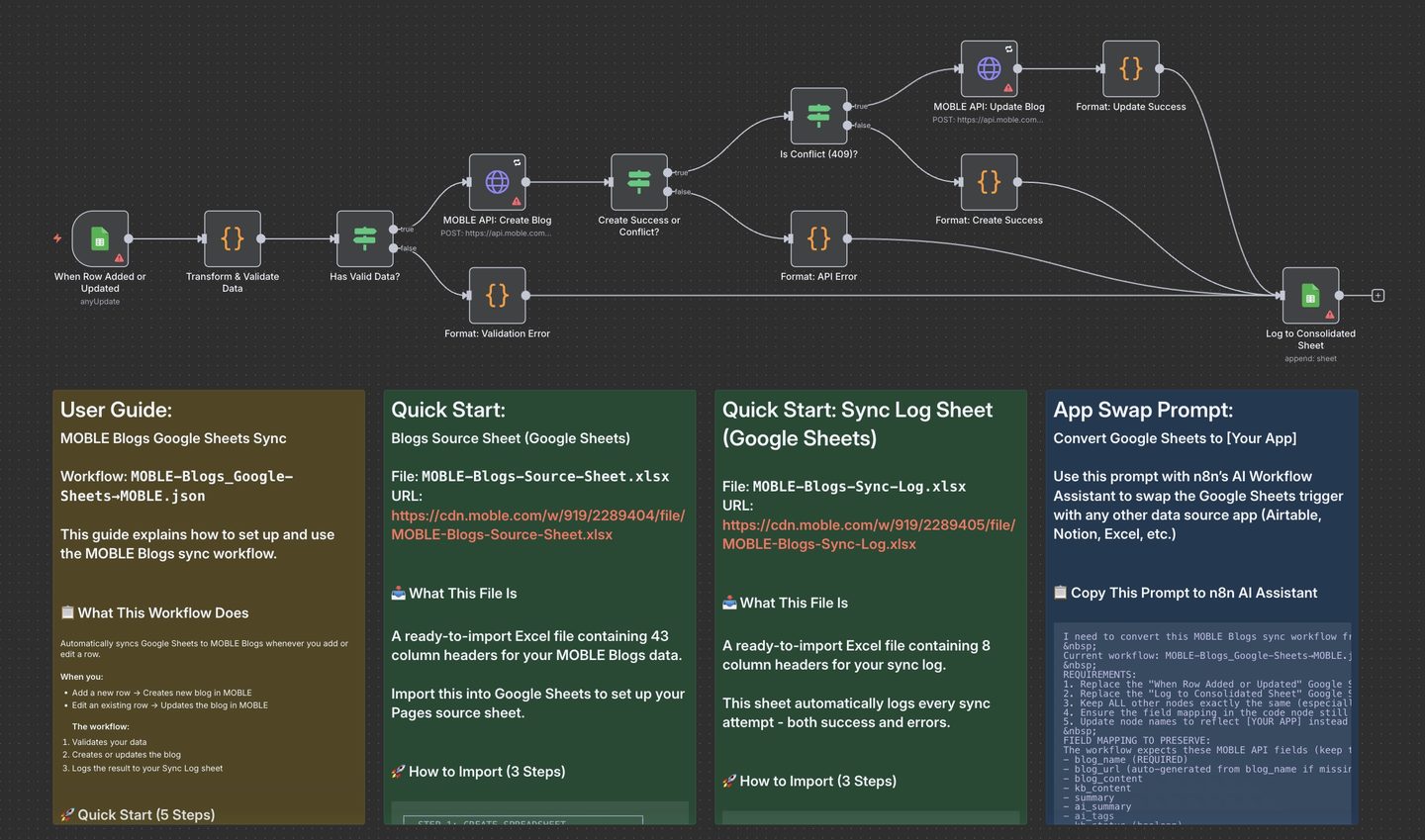
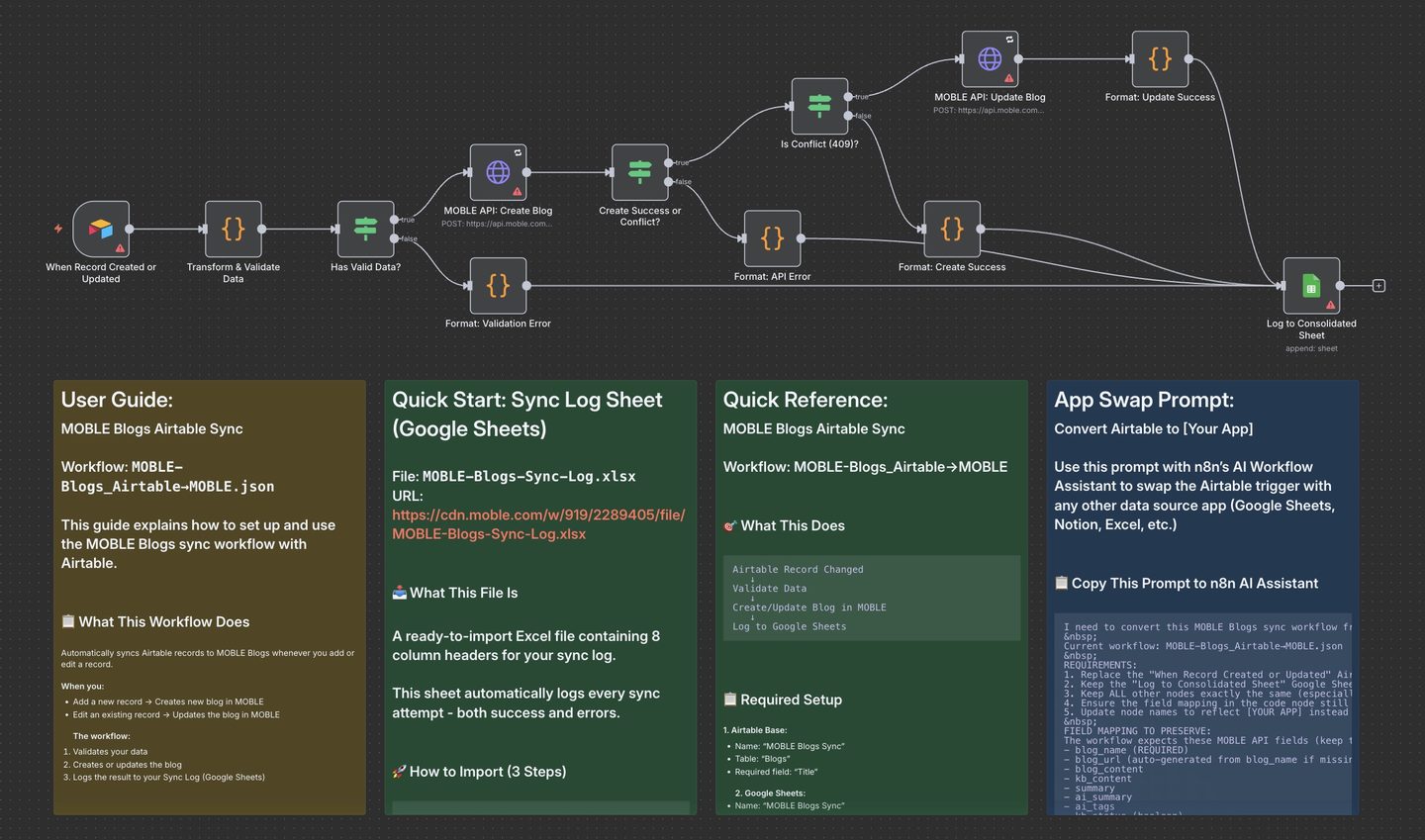
Use a Google Sheet or Airtable Base as a live content editor to add/edit Blog content in MOBLE. When rows/records are added or updated, n8n automatically syncs them to MOBLE Blogs, updating your site and AI Knowledge Base. All results are recorded to a Google Sheets Sync Log (even when Airtable or another app is the source).
1. Create Your Source Sheet (Google Sheets or Airtable)
- Create two Google Sheets using these names:
- MOBLE-Blogs-Source-Sheet — your main content sheet (tab: Blogs)
- MOBLE-Blogs-Sync-Log — your automatic results log (tab: Sync Log)
- Download and open the templates above to scaffold the correct headers.
- Default names used by the workflow:
- Document: MOBLE-Blogs-Source-Sheet
Sheet (Tab): Blogs - Document (Logs): MOBLE-Blogs-Sync-Log
Sheet (Tab): Sync Log
- Document: MOBLE-Blogs-Source-Sheet
- If you rename your sheets, that’s fine — just make sure to update the names in n8n under each Google Sheets or Airtable node to match exactly.
- Note: If the URL Slug column is blank, the workflow auto-generates blog_url (slug) from Title.
2. Import the n8n Workflow
- In n8n, go to Create Workflow → Import from File → select your Blogs Workflow Template (.json).
- The workflow opens in the n8n editor; leave it Inactive until setup is complete.
3. Add Trigger Node Credentials (in n8n)
Google Sheets Trigger Node
- Click the Trigger Node titled When Row Added or Updated.
- Under Credential to connect with, click + Create New Credential, choose Google Sheets OAuth2, complete sign-in, then Save.
- Configure:
- Document: MOBLE-Blogs-Source-Sheet
- Sheet: Blogs
- If you changed the Sheet names in Step 1, use your new names.
Airtable Trigger Node
- Click the Trigger Node titled When Record Created or Updated.
- Under Credential to connect with, click + Create New Credential, choose Airtable OAuth2 (or Personal Access Token), authorize, then Save.
- Configure:
- Base: MOBLE-Blogs-Source-Sheet
- Table: Blogs
- If you changed the Base/Table names in Step 1, use your new names.
Swap to Other App Trigger Node
- Open the Sticky Note titled App Swap Prompt inside the workflow.
- Copy its text into n8n’s Text-to-Workflow Assistant, edit for your chosen app and the fields you need, then apply.
- The Assistant replaces the source trigger while keeping the MOBLE API and Sync Log nodes intact.
- Important: Enable only one source trigger (Google Sheets or Airtable or your swapped app) to avoid duplicate runs.
4. Add Sync Log Credentials (in n8n)
Google Sheets Sync Log
- Click the node titled Log to Consolidated Sheet.
- Attach your Google Sheets OAuth2 credential.
- Configure:
- Document: MOBLE-Blogs-Sync-Log
- Sheet: Sync Log
- This node records every API response (create, update, error) into your log sheet.
- Sync Log Columns (8): timestamp, blog_url, blog_name, action, status, details, error_message, http_status
Airtable Sync Log (optional)
- Click the node titled Log to Sync Log Table.
- Attach your Airtable OAuth2 (or Personal Access Token) credential.
- Configure:
- Base: MOBLE Blogs Sync
- Table: Sync Log
- Logs: create/update successes, API errors, validation errors.
- Fields (8): timestamp, blog_url, blog_name, action, status, details, error_message, http_status
- Tip: Use “Single line text” for simple fields; use “Date/Date time” for timestamp.
5. Get Your MOBLE API Key (in MOBLE)
- Go to MOBLE → Global Settings → Integrations → MOBLE API Key.
- Copy your MOBLE API Key (starts with
ak_).
6. Add MOBLE API Credentials (in n8n)
- Add the same Header credential to both nodes:
- MOBLE API: Create Blog
- MOBLE API: Update Blog
- For each node:
- Click the node → Credential to connect with → + Create New Credential → select Header Auth.
- Paste MOBLE API Key using:
- Name: Authorization
- Value: Bearer ak_XXXXXXXXXXXXXXXX
- Save and reselect the credential in both nodes.
7. Test, Then Activate
- Click Execute Workflow (manual run).
- Add a simple row/record in your chosen Source (Sheets or Airtable):
Title: Test Blog
Blog Content: <p>Hello</p>
- Check MOBLE → Blogs for “Test Blog”.
- Check MOBLE-Blogs-Sync-Log → Sync Log for action: create, status: success.
- Once verified, toggle the workflow to Active for live syncing.
- Title — Display name of the blog (maps to blog_name). (Required)
- URL Slug — Unique slug for blog_url (leave blank to auto-generate from Title).
- Blog Content — Main HTML content (blog_content).
- Editor Content — Structured HTML used by the editor (editor_content).
- KB Content — Plain text/markdown for AI Knowledge Base (kb_content).
- Summary — Short teaser/preview (summary).
- AI Summary — Short summary used in Chatbot carousel (ai_summary).
- AI Tags — Comma-separated tags for AI segmentation (ai_tags).
- KB Status — Include in AI Webmind (TRUE/FALSE) (kb_status).
- Chatbot Icon URL — Image for chatbot/social previews (chatbot_icon_url).
- Tags — Comma-separated tags for widgets (tags).
- Priority — Ranking used by Chatbot search (priority).
- Importance — Business impact/profitability (importance).
- Author — Author credit (author).
- Display Date — Shown on card/post (YYYY-MM-DD) (display_date).
- Sort Order — Ordering key for widgets (sort_order).
- Meta Title — HTML title tag (title).
- Meta Description — SEO description (meta_description).
- Meta Keywords — Comma-separated keywords (meta_keywords).
- Meta Tags — Raw HTML/script tags (meta_tags).
- Blog Status — draft or published.
- Member Access — Restrict access (Yes or group name) (member_access).
- Hide Header — TRUE/FALSE (hide_header).
- Hide Footer — TRUE/FALSE (hide_footer).
- Destination URL — Redirect target (destination_url).
- File URL — External file link (file_url).
- Publish Date — Scheduled go-live (YYYY-MM-DD) (publish_date).
- Take Down Date — Scheduled unpublish (YYYY-MM-DD) (take_down_date).
- Option 1 … Option 15 — Flexible custom fields (option_1 … option_15).
- timestamp — When the sync ran.
- blog_url — Slug that was created/updated.
- blog_name — Title processed for this run.
- action — create, update, or validation.
- status — success or error.
- details — Short result note (e.g., new ID).
- error_message — Why it failed (if any).
- http_status — API code (e.g., 201, 200, 409) or 0 for validation errors.
- Nothing syncing: Ensure the workflow is Active and only one source trigger is enabled.
- 401/403: MOBLE API key missing/invalid. Header must be Authorization: Bearer ak_XXXXXXXX on both API nodes.
- 409: Blog already exists. The workflow auto-switches to update.
- No Sync Log: Confirm your chosen logger node (Google Sheets or Airtable) has credentials and correct names.
- Validation errors: Ensure Title is filled; URL Slug may be left blank to auto-generate.
SECURITY: Restrict n8n access to trusted staff. Rotate API keys quarterly.
RELATED HELP



Play before you Pay?
GETTING AROUND
SUPPORT
AI SALES LINE
AI SUPPORT LINE
ENQUIRIES
team@moble.com.au
GET A QUOTE
A Web Builder for Design. A CMS for Business. We serve all businesses from SME's to Enterprise. Talk with us for AI development, custom website design, website development, ecommerce websites, directories, intranets and social networks.
PRIVACY | WEBSITE TERMS | PLATFORM TERMS | © 2026 MOBLE PTY LTD