
PICK YOUR AI THEME TO GET STARTED

ADD CUSTOMER FEEDBACK TO YOUR CHATBOT
Customer Feedback is a simple option in your AI Settings that lets you capture what real visitors think about your Chatbot responses—especially useful during your initial beta launch.

WHAT IT DOES
Customer Feedback records feedback left by your website visitors during or after chats with your AI Agent. This gives you a clear view of what’s working, what’s confusing, and where your Chatbot needs better Knowledge Base content.
You can also view a complete log of chats and feedback across all agents via AI Analytics in the top bar.
WHEN TO USE CUSTOMER FEEDBACK
Enable Customer Feedback when:
- You’ve just launched a new Chatbot (beta / soft launch).
- You want to spot missing answers and content gaps fast.
- You’re improving tone, clarity, or conversion performance.
- You’re testing multiple agents and want one place to review results.
- You can disable Customer Feedback once your Chatbot is fully tested and you’re confident in the Knowledge Base coverage.
HOW TO SEE YOUR FEEDBACK
Open the AI Agents area
Go to your AI Agents / Chatbot area in MOBLE.Click AI Analytics in the top bar
This opens a complete log of:
- Chat conversations
- Customer feedback
- Activity across all your agents
HOW TO ENABLE /DISABLE CUSTOMER FEEDBACK
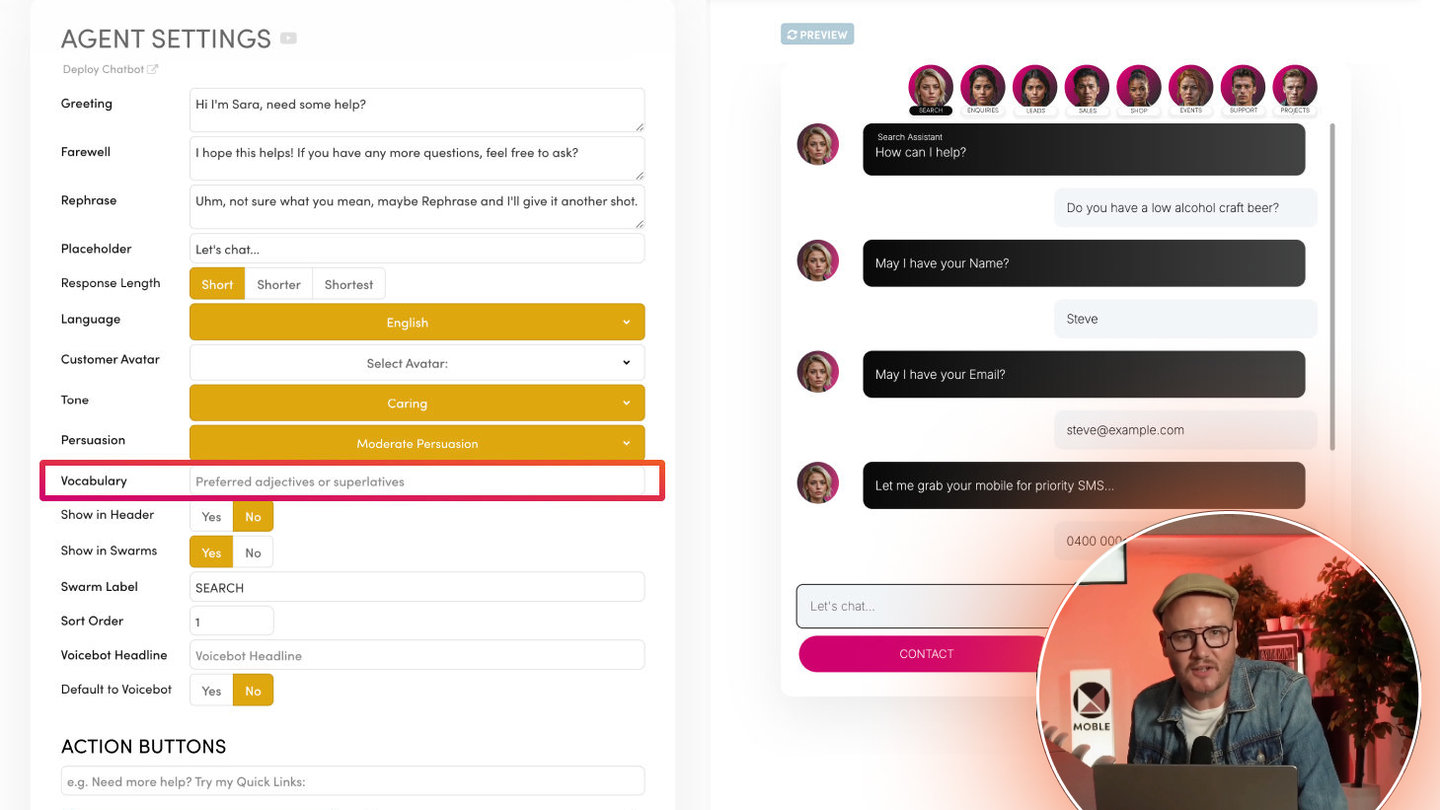
Open AI Settings
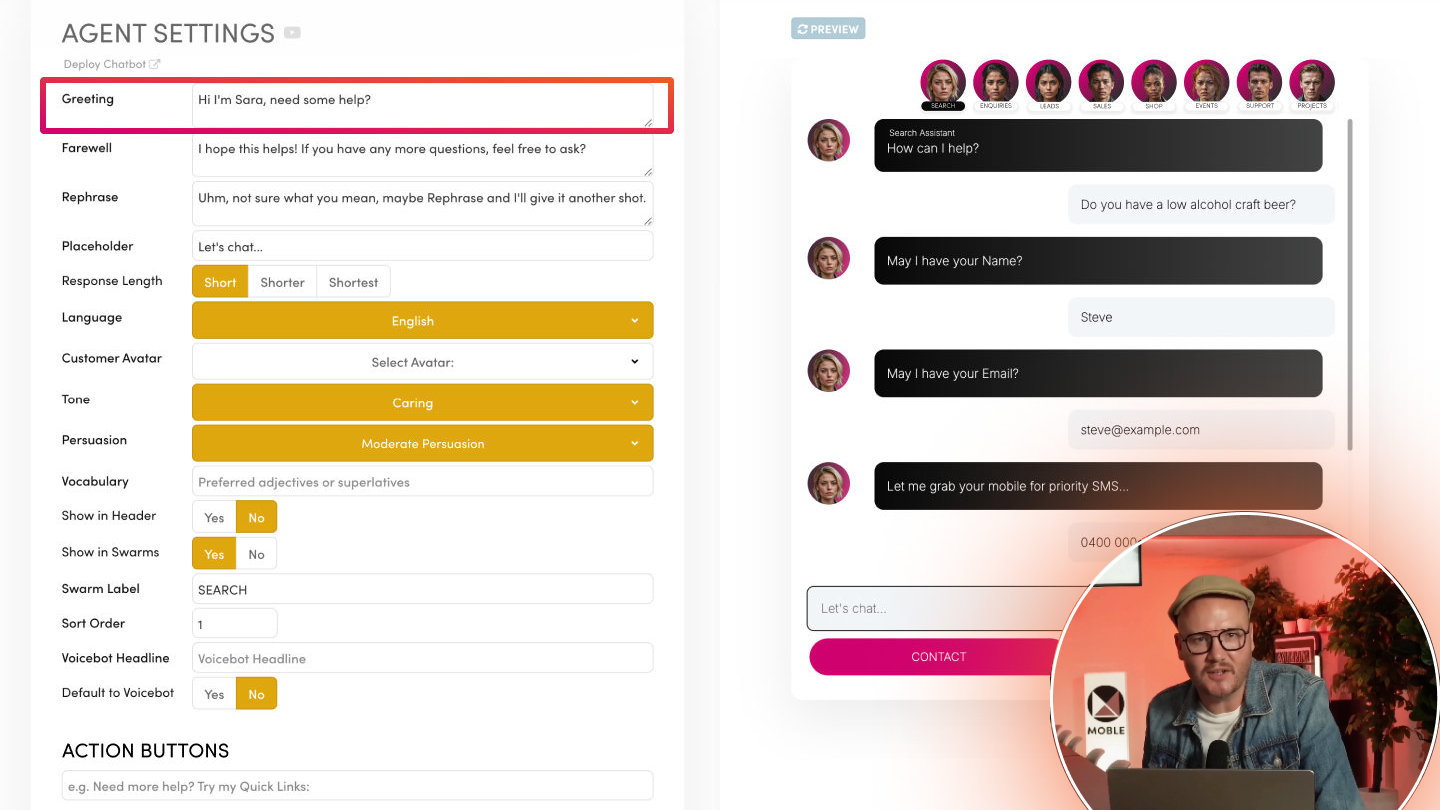
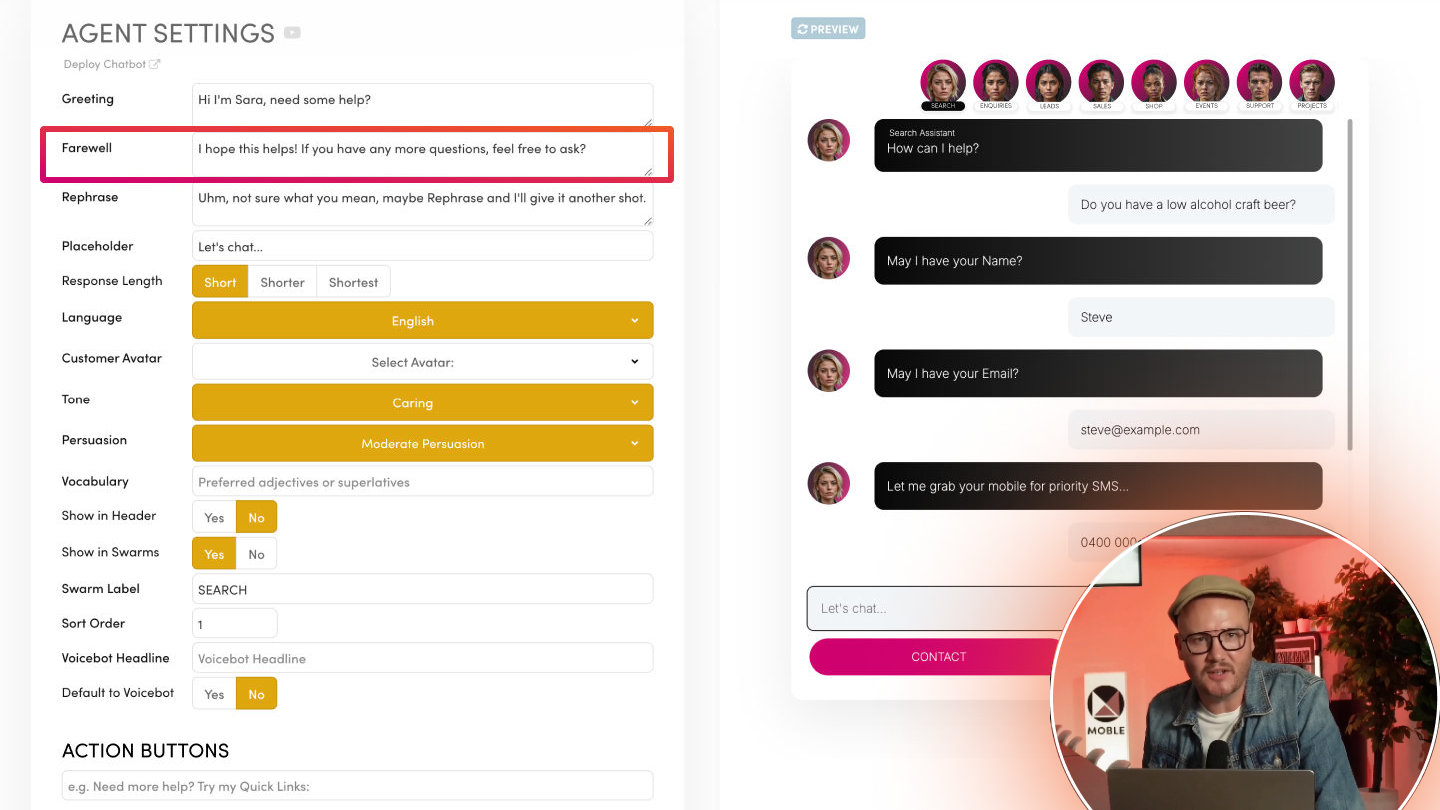
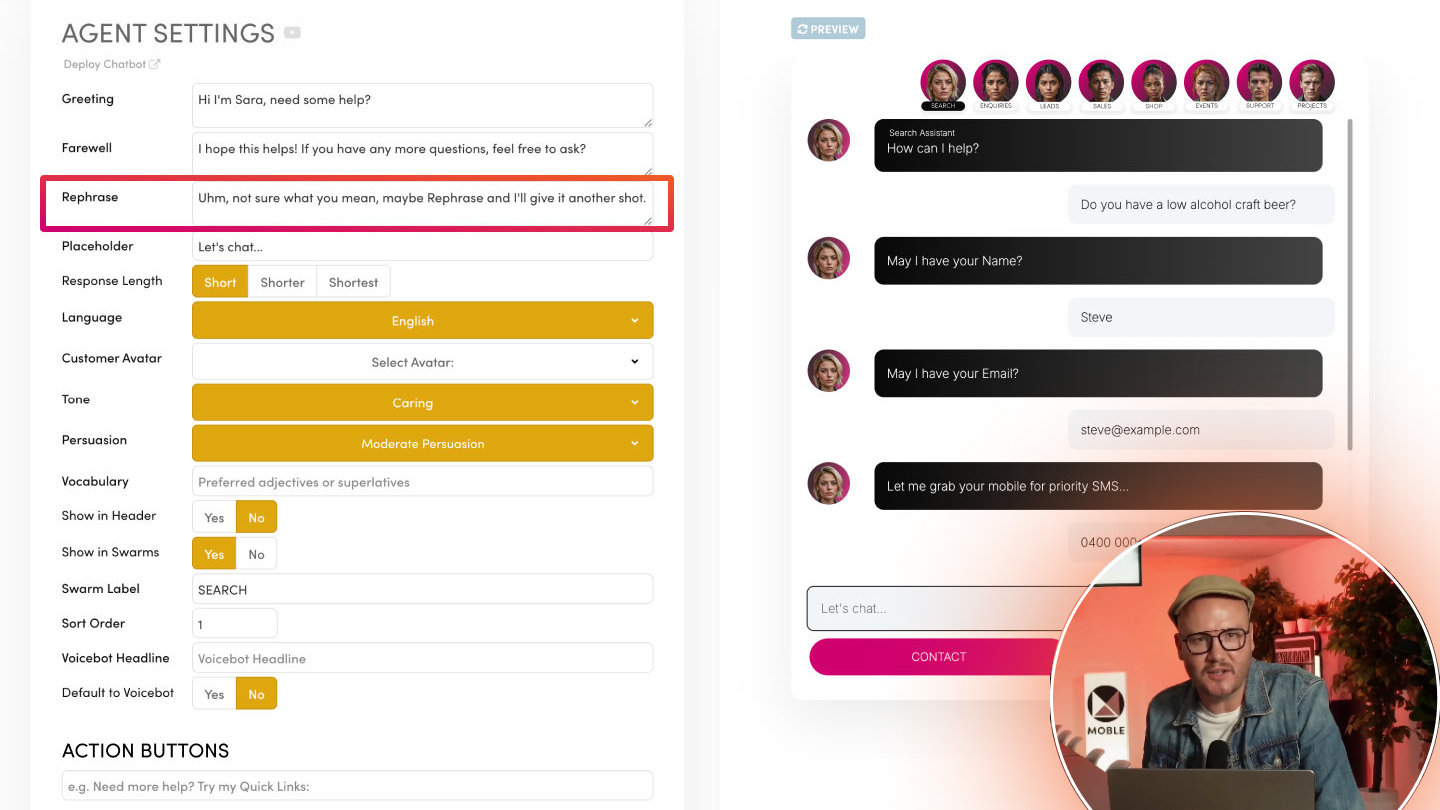
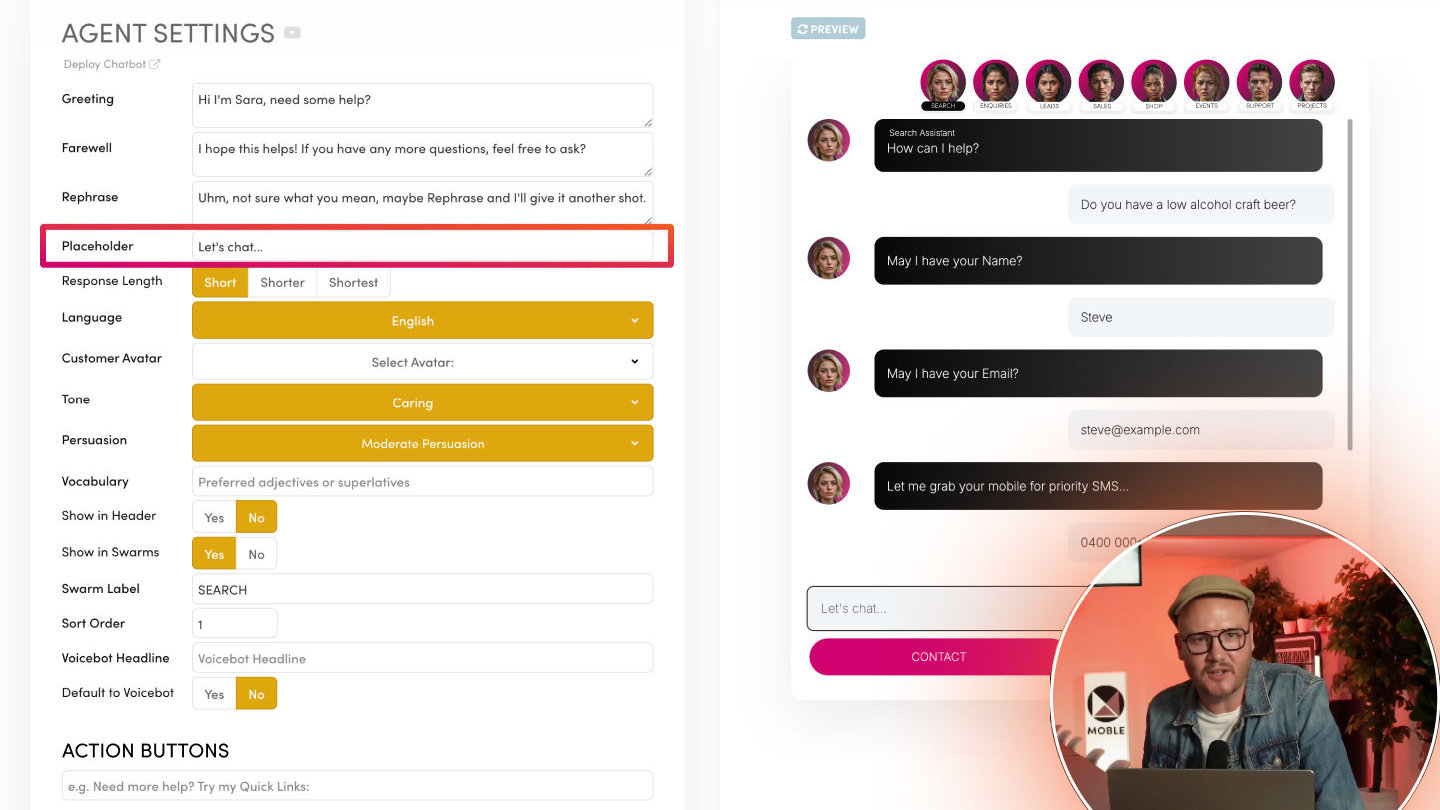
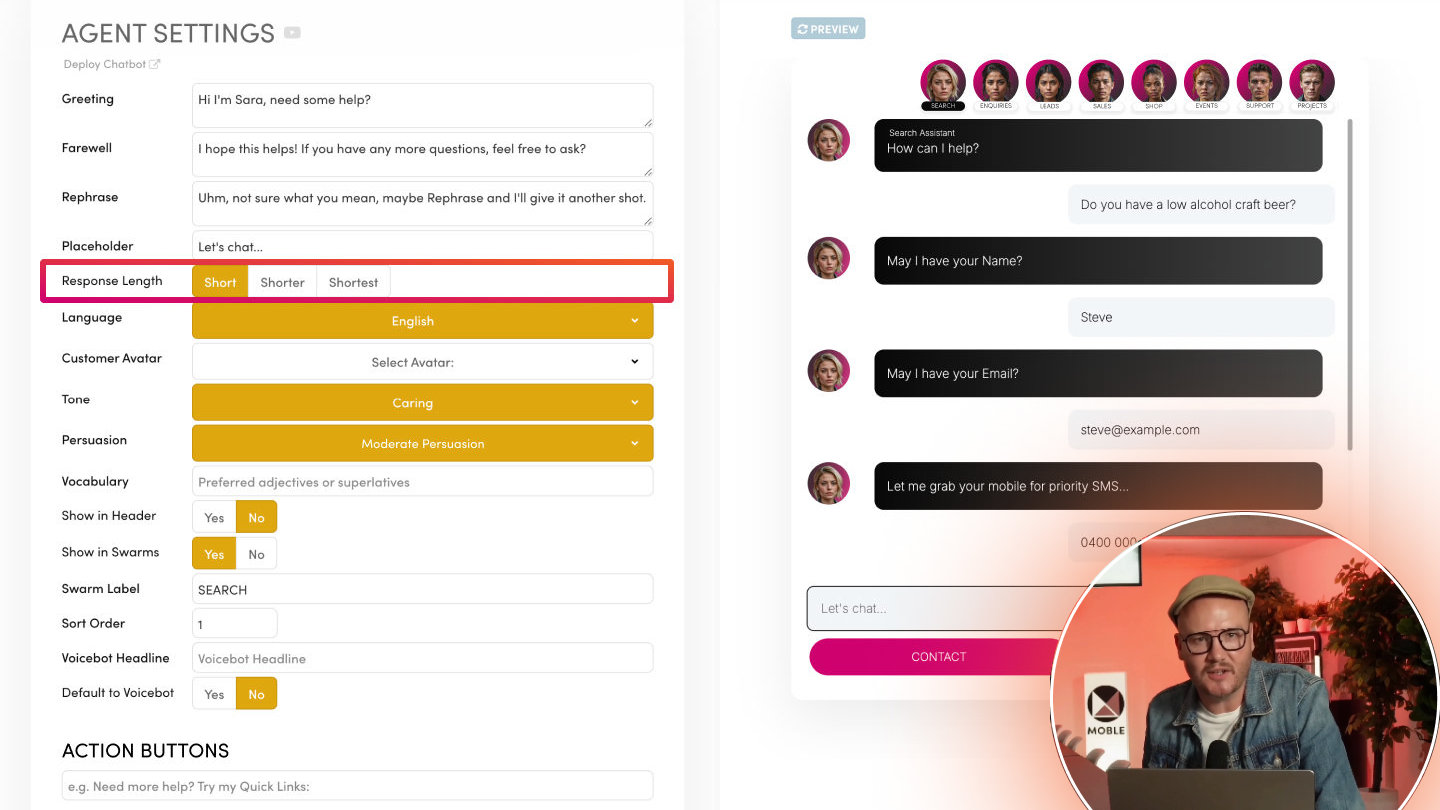
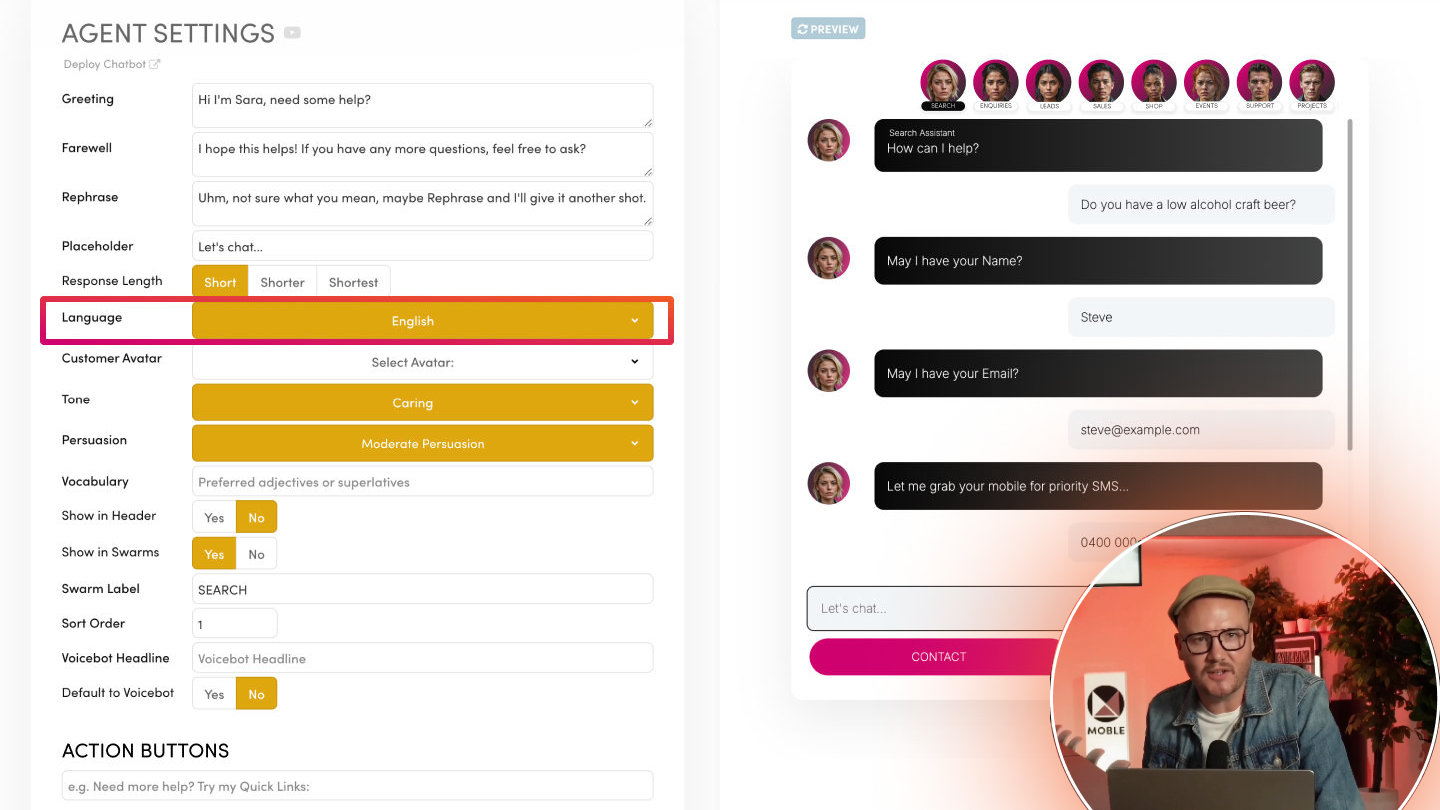
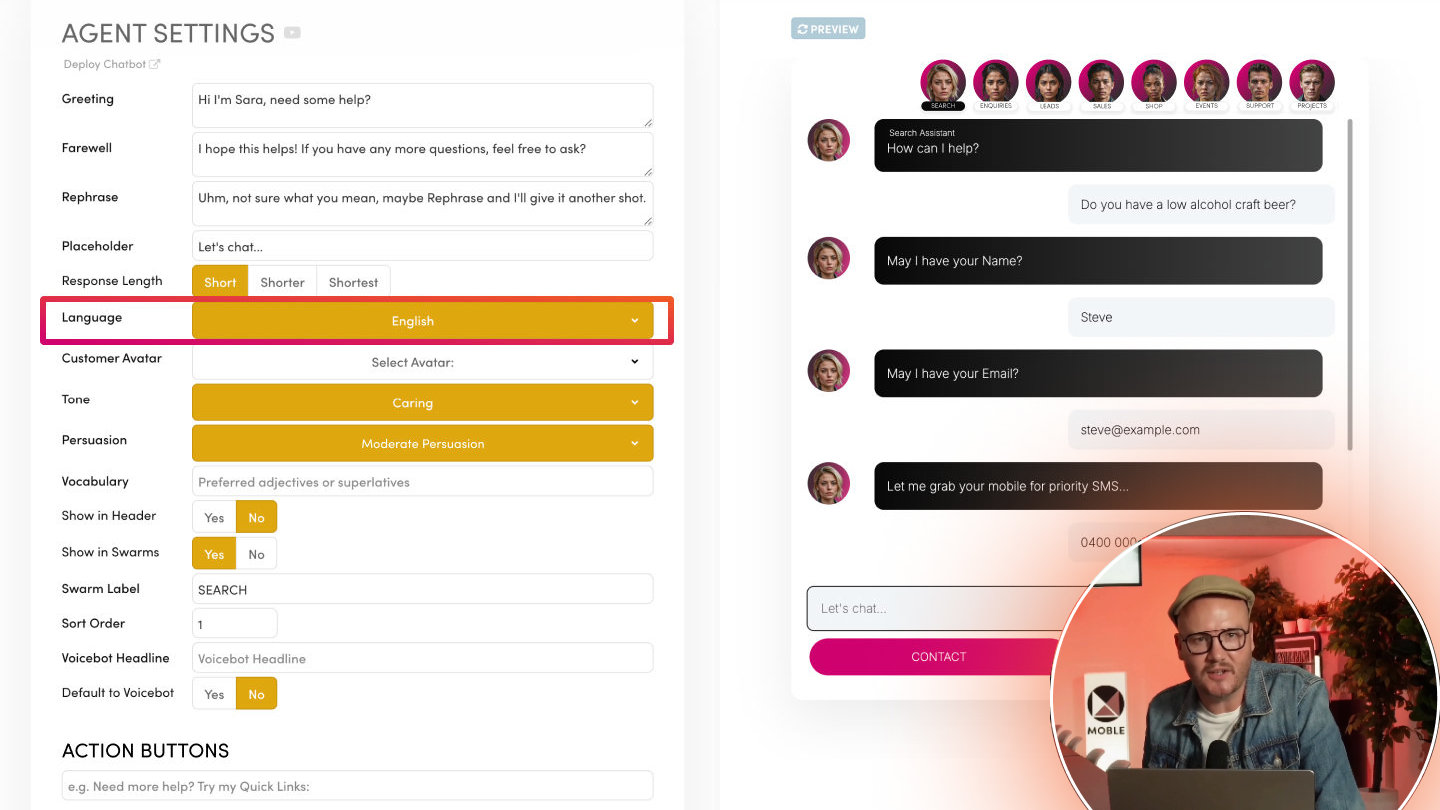
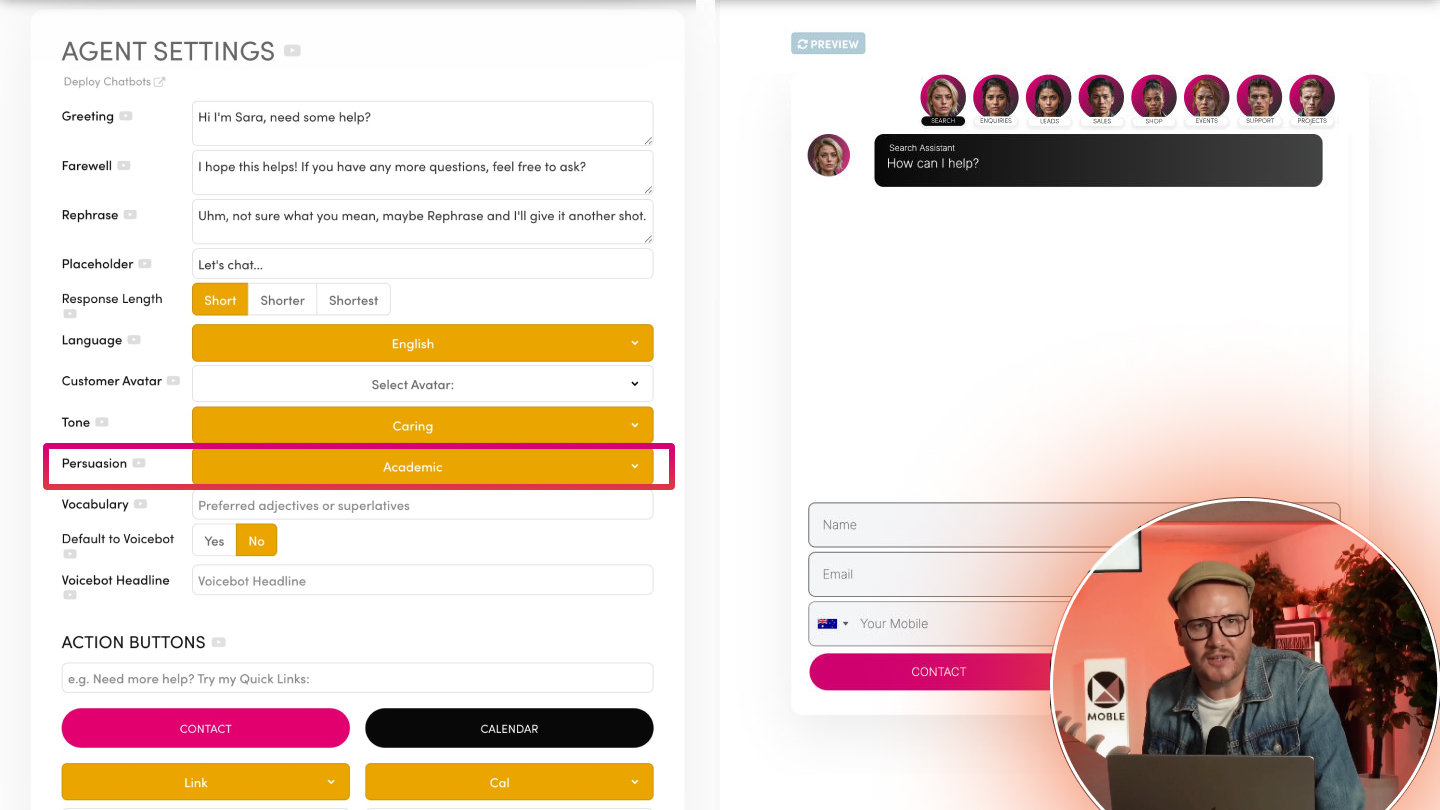
Go to your Chatbot (AI Agent) settings.Find the Customer Feedback option
Toggle Customer Feedback ON/Off
On allows visitors can leave feedback on Chatbot responses via a Thumbs up and Thumbs downs iconSave
Once enabled, feedback will start appearing in your logs.
TOP TIP
When testing your Chatbot and reviewing feedback, continually revise and iterate your Knowledge Base content.
The fastest way to patch missing info during beta is to add or update FAQs, then later rewrite longer Knowledge Base sections once patterns are clear.
BEST PRACTICES
- Review feedback during beta (daily or weekly)
- Don’t wait for “perfect”—use feedback as your iteration engine.
- Look for repeated confusion
- If multiple users ask the same thing, that’s a Knowledge Base gap.
- Fix fast with FAQs
- Add an FAQ immediately using the customer’s wording, then test again.
- Turn feedback off after launch maturity
- Once the Chatbot is stable, disable feedback to keep the experience clean and focused.
RELATED HELP
Play before you Pay?
GETTING AROUND
SUPPORT
AI SALES LINE
AI SUPPORT LINE
ENQUIRIES
team@moble.com.au
GET A QUOTE
A Web Builder for Design. A CMS for Business. We serve all businesses from SME's to Enterprise. Talk with us for AI development, custom website design, website development, ecommerce websites, directories, intranets and social networks.
PRIVACY | WEBSITE TERMS | PLATFORM TERMS | © 2026 MOBLE PTY LTD