
PICK YOUR AI THEME TO GET STARTED

WEBSITE EFFECTS
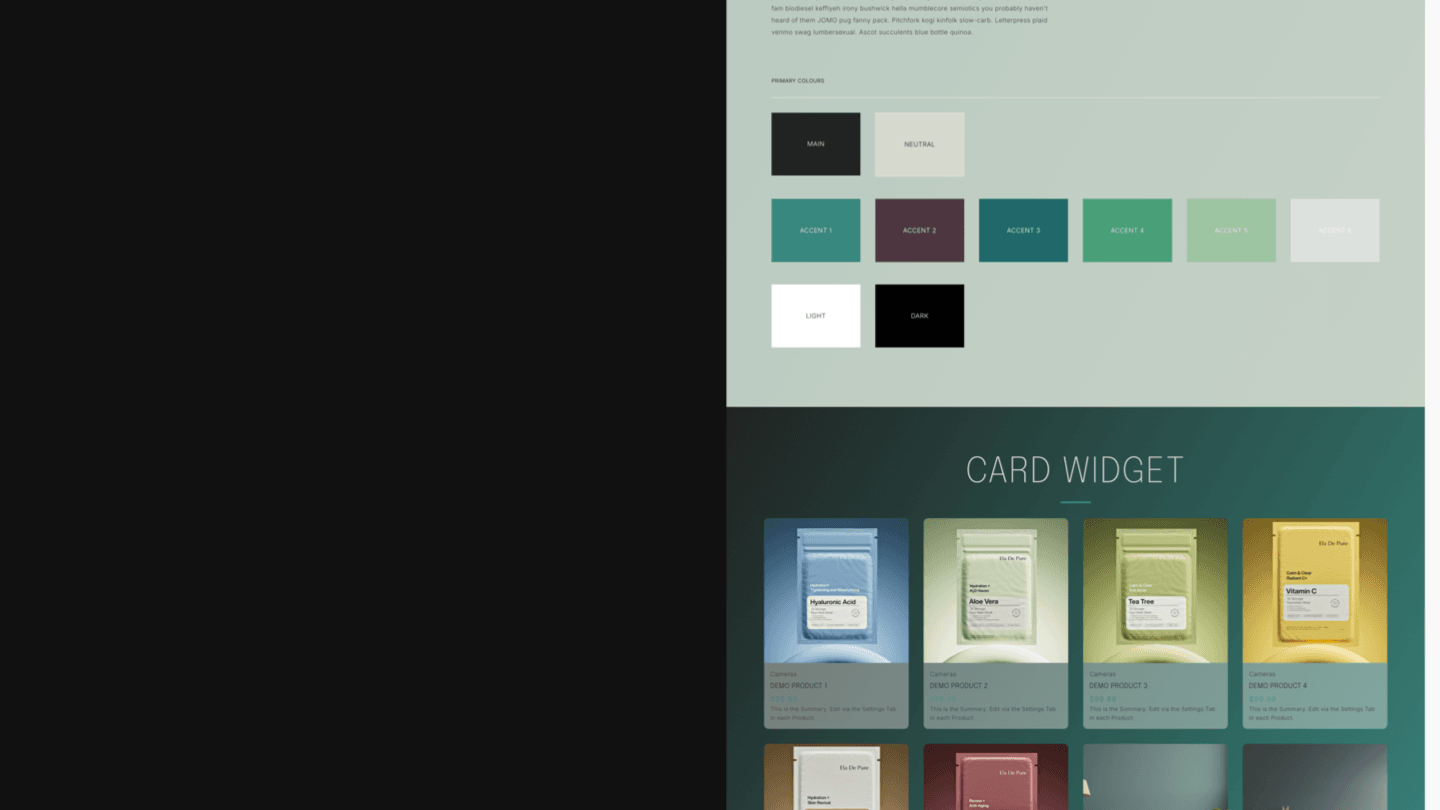
The Effects screen holds the hover effects your widgets can use — the movement a visitor sees when the pointer moves over a card. You add an effect here, then choose it on each widget.
WHERE TO FIND IT
In the Main Menu (the MOBLE logo, top left) scroll down and click Styles, then click EFFECTS in the top bar.
ADD AN EFFECT
- Click play under a card to watch the effect.
- Click + to add it to your website, or − to remove it.
- Press SAVE at the top right.
PRIMARY and SECONDARY are already on every website.
USE IT ON A WIDGET
Click ADD TO WIDGET under the card, or open your page in the editor, click the pencil on the widget and choose the effect in the Hover Effect dropdown. Only effects added on the Effects screen appear there. Save the page, refresh it and move the pointer over a card. See Widget Hover Effect.
KEEP IT TO TWO
Every added effect makes your pages a little heavier to load. MOBLE recommends no more than two added effects, used the same way across your website.
OTHER EFFECTS
Fade-in on scroll, parallax, shift, rotate and hover colours are set on a section in the page editor, in the frame's FX tab — see Reveal on Scroll, Parallax and On Hover.
RELATED HELP


Play before you Pay?
GETTING AROUND
SUPPORT
AI SALES LINE
AI SUPPORT LINE
ENQUIRIES
team@moble.com.au
GET A QUOTE
A Web Builder for Design. A CMS for Business. We serve all businesses from SME's to Enterprise. Talk with us for AI development, custom website design, website development, ecommerce websites, directories, intranets and social networks.
PRIVACY | WEBSITE TERMS | PLATFORM TERMS | © 2026 MOBLE PTY LTD